> ## Documentation Index
> Fetch the complete documentation index at: https://siliconflow-4a6a0801.mintlify.site/llms.txt
> Use this file to discover all available pages before exploring further.
# NoteGen
## About NoteGen
[NoteGen](https://github.com/codexu/note-gen) is a cross-platform `Markdown` note-taking application designed to bridge the gap between documentation and AI-assisted writing. It helps users organize fragmented knowledge into readable, structured notes.
This article will show how to use the API service provided by SiliconCloud to enable AI-powered note-taking and writing within NoteGen.
## Installing NoteGen
Open [NoteGen Releases](https://github.com/codexu/note-gen/releases) in your browser and download the installation package for your operating system.
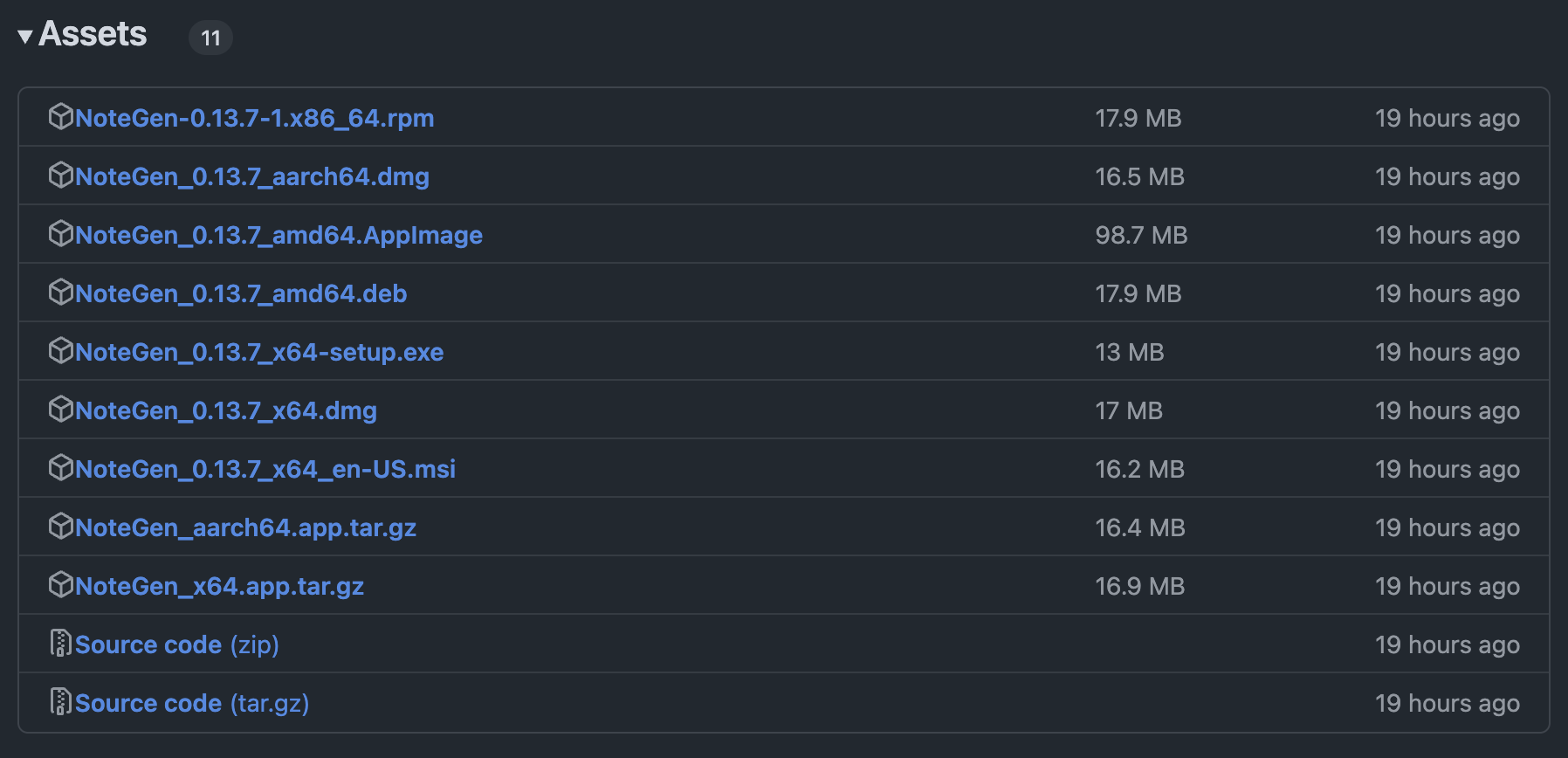 NoteGen supports all major operating systems, including Windows, macOS, and Linux. iOS and Android versions are planned for future release.
## Using SiliconCloud with NoteGen
After installing NoteGen, follow these steps:
1. Click the settings icon in the lower-left corner to open the system settings page.
2. Select SiliconFlow as the **Model Provider**.
3. Enter the API key you created in the SiliconCloud dashboard.
4. Use the **Model** dropdown to select the model you want to use.
NoteGen supports all major operating systems, including Windows, macOS, and Linux. iOS and Android versions are planned for future release.
## Using SiliconCloud with NoteGen
After installing NoteGen, follow these steps:
1. Click the settings icon in the lower-left corner to open the system settings page.
2. Select SiliconFlow as the **Model Provider**.
3. Enter the API key you created in the SiliconCloud dashboard.
4. Use the **Model** dropdown to select the model you want to use.
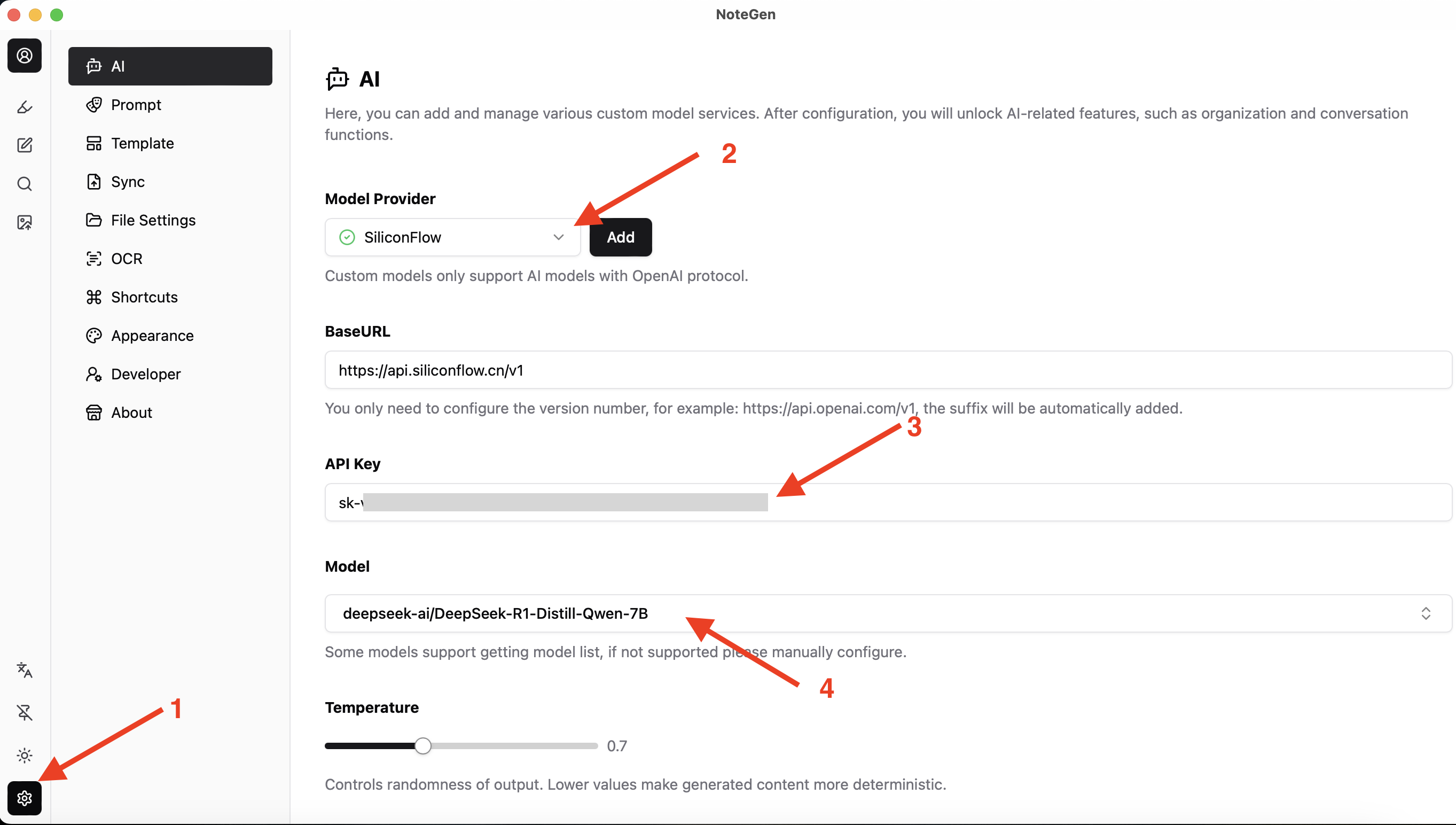 Once these steps are complete, a green check mark next to the Model Provider indicates it's ready to use.
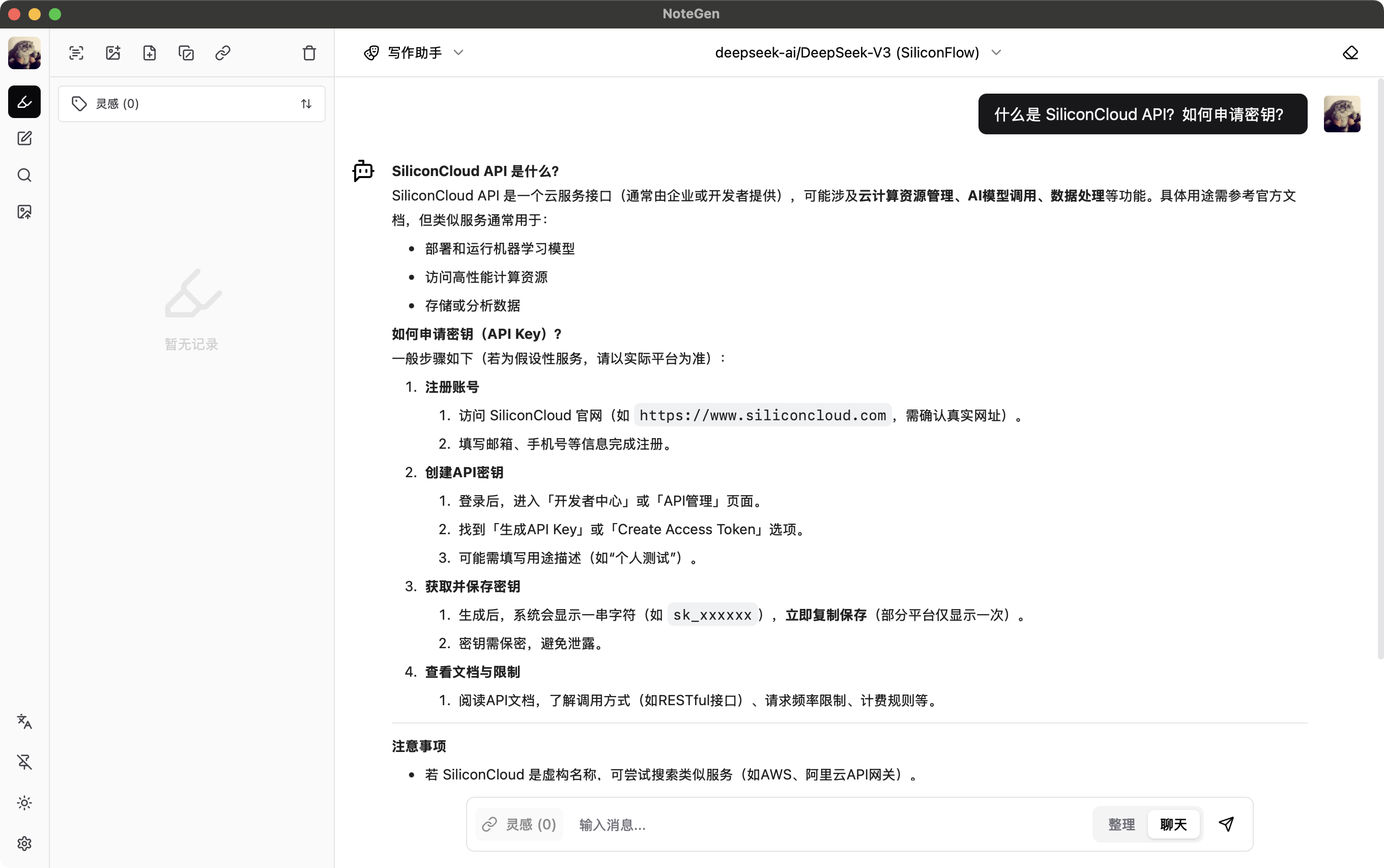
## Testing SiliconCloud's DeepSeek-V3 Model in NoteGen
Once these steps are complete, a green check mark next to the Model Provider indicates it's ready to use.
## Testing SiliconCloud's DeepSeek-V3 Model in NoteGen